Congratulations Seniors!!!
Some of you will be interested in keeping your hard work from the past 4 years and others will not. For those of you that are interested, here are directions to help you out. You now have two ways of taking your content with you: Google Takeout or Google transfer.
Google Takeout
Google Takeout will allow you to download your @alstudent.org content to a .ZIP format that you can easily save to another cloud based storage (Dropbox, OneDrive or your existing Google Drive).
Once you are logged in to your account, open Chrome, click to open a new tab, click on the "App Launcher" (the gray waffle icon).
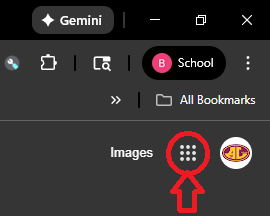 From there, select "Account".
Select "Data & Privacy" in the left sidebar
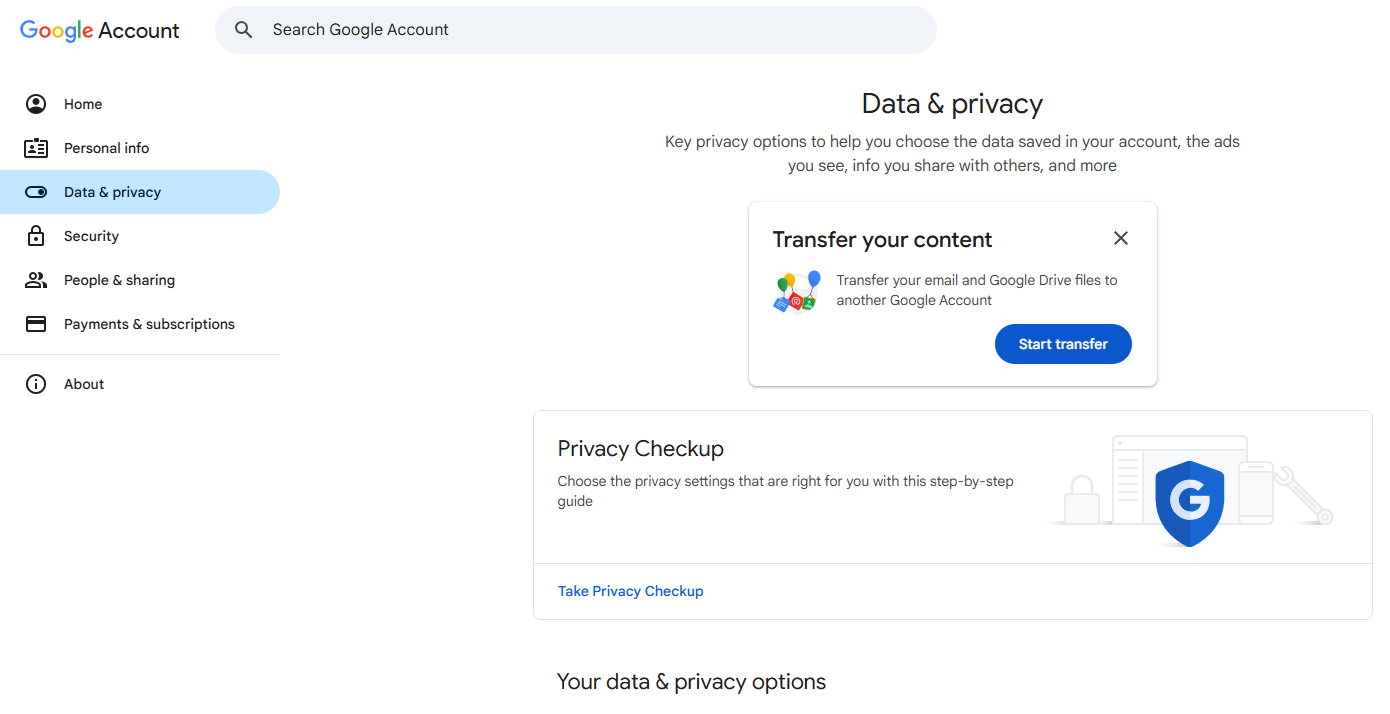 Now is where you have a choice to "Download your data" or "Transfer your Content". Directions for each are below.
Download your Data
Scroll down on the page until you see “Download or delete your data”. Under this heading, select “Download your data”.
Select what you want to keep, then hit “Next Step” at the bottom.
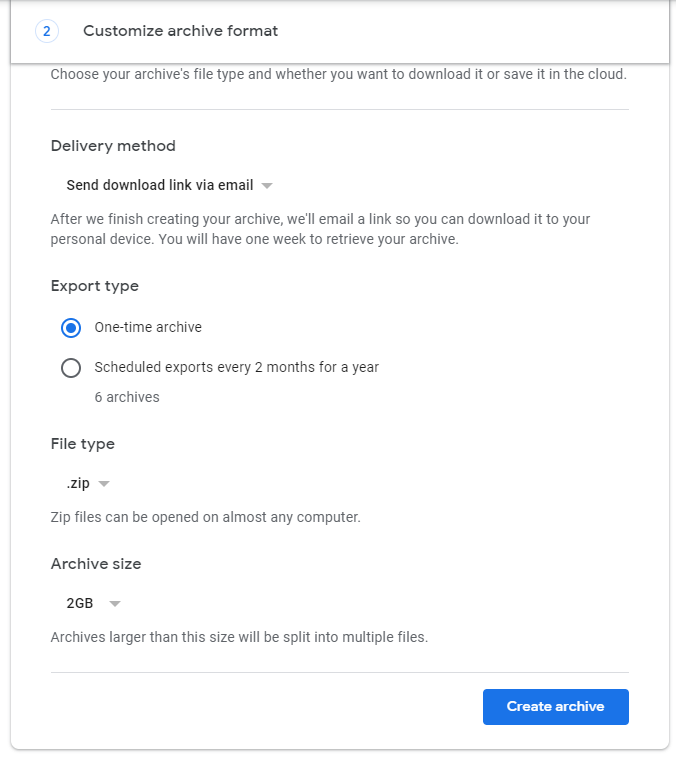
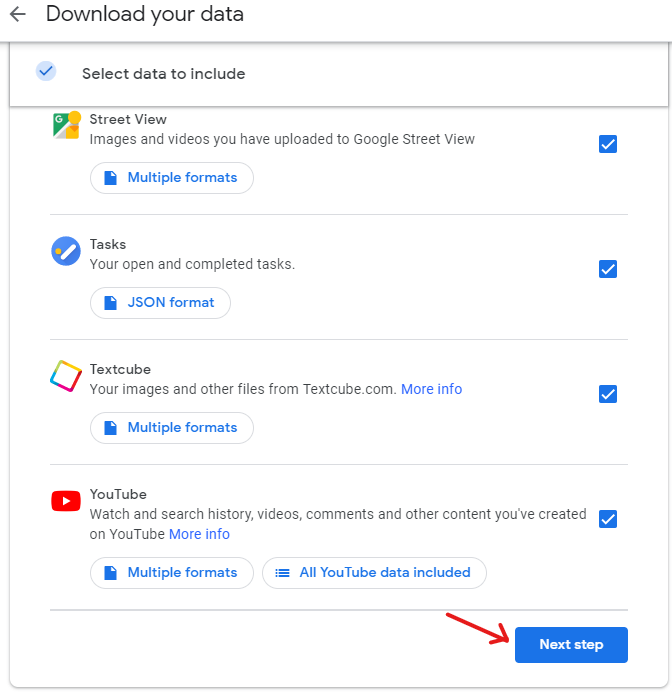 From here, under “Delivery Method,” select where you would like the data to be stored. If you choose to export to drive, make sure you download the .zip file before the end of the year. Leave the “File type” as “.zip,” and make sure to select “One-time archive.” Then hit “Create archive,” and your data is successfully archived and can be downloaded.
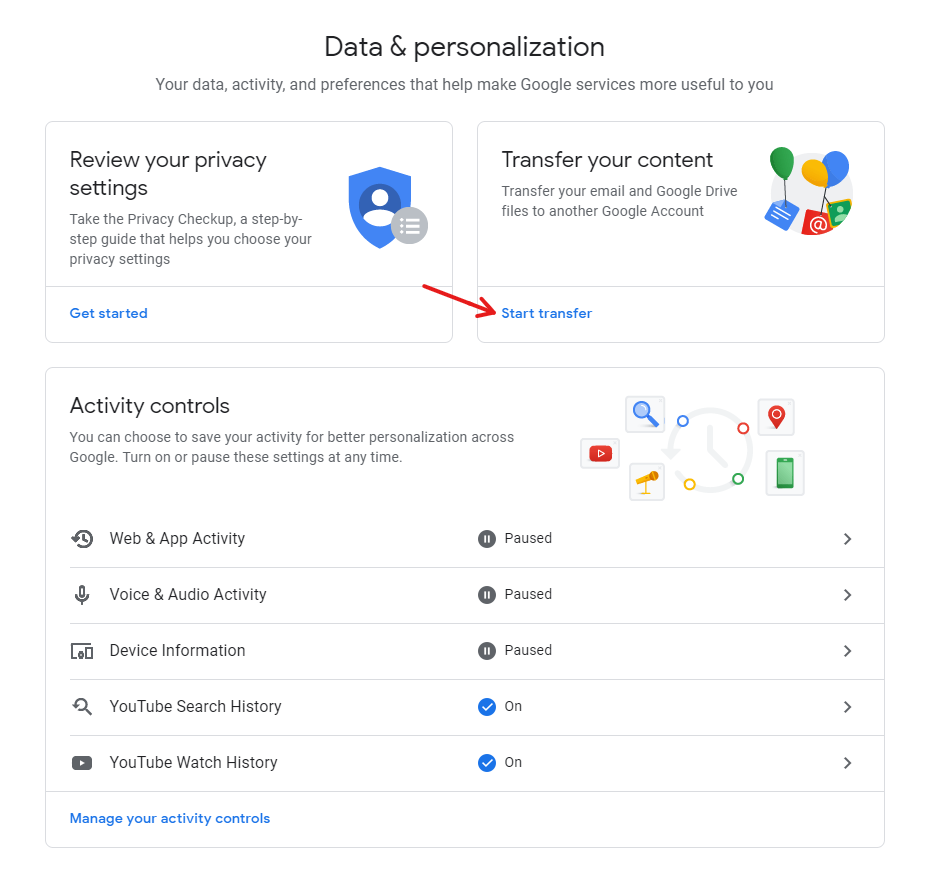
 Want to send all your goodies to your personal Google account? Now you can! The steps are very similar to Google Takeout, but instead of choosing "Download your data", you will select "Start transfer".
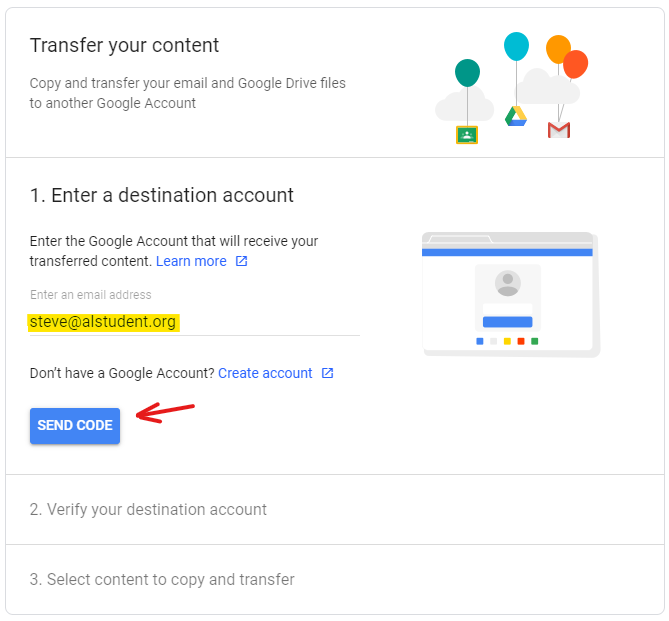
 Enter your personal email account (NOT ALSTUDENT) in the box and hit “SEND CODE.”
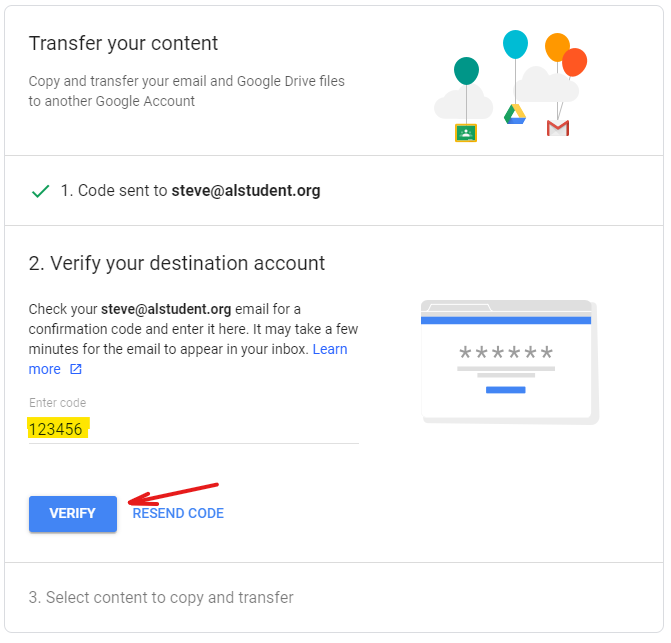
Enter the code from Google (in your personal email), then hit “VERIFY.”
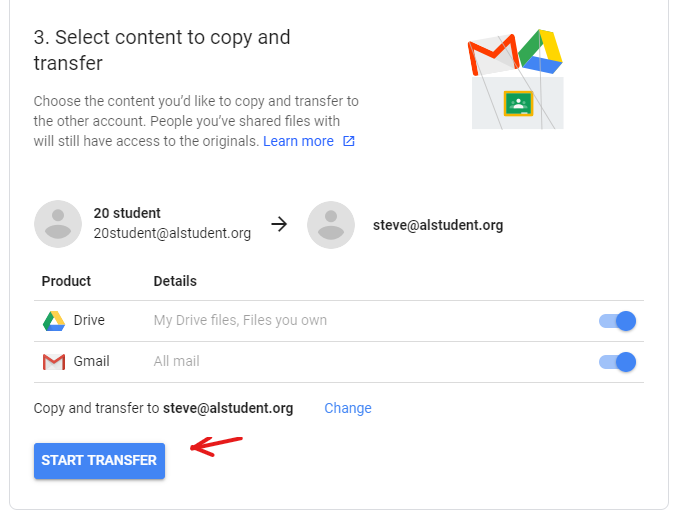
 Pick what you want to keep, then hit “START TRANSFER.”